
The Standard I Set for Myself
When I built atomwebstudio.com, I had one non-negotiable requirement: the site had to be fast. Not "pretty fast." Not "faster than average." Genuinely, measurably fast — the kind of performance that shows up in PageSpeed Insights as green across the board.
Not because I needed to prove something. Because performance is literally what I sell.
If I'm approaching agencies and businesses about HubSpot CMS development and Core Web Vitals optimization, my own site has to be the clearest possible demonstration of what I can do. It's my most visible case study. Every potential client who Googles me will land on it. Every agency considering white-label support will check it.
So I built it to the standard I hold my clients' sites to. Here's exactly how I did it — and what the numbers look like.
The Results First
Before getting into the how, here's what the site currently scores:
| Metric | Result |
|---|---|
| Desktop PageSpeed | 99 |
| Desktop FCP | 0.7s |
| Desktop LCP | 0.8s |
| Total Blocking Time | 0ms |
| Cumulative Layout Shift | 0 |
| Speed Index | 1.0s |
| JS Bundle Size | ~48KB |
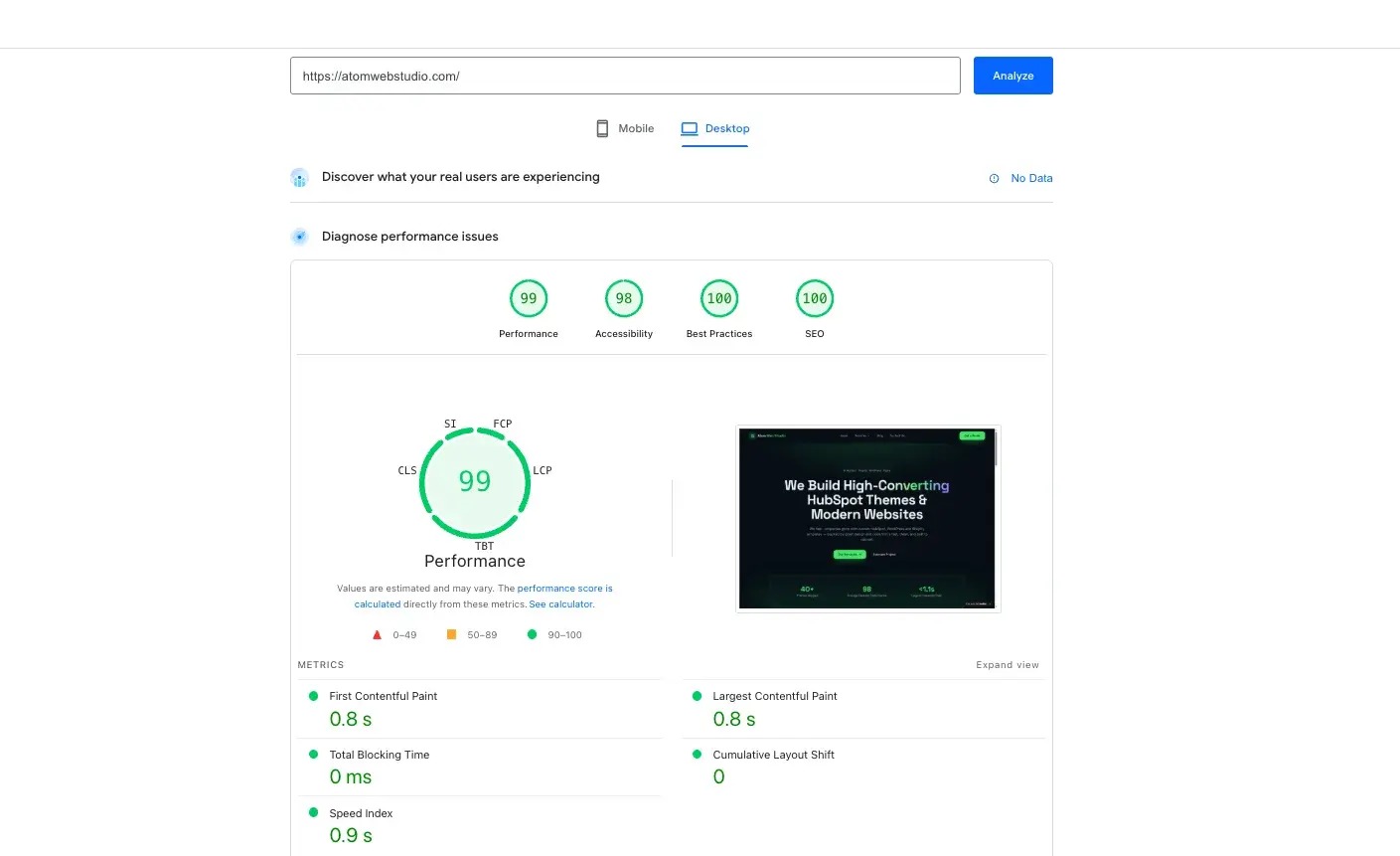
View the live PageSpeed Insights report →
A desktop LCP of 0.8 seconds means the largest visible element on the page is fully rendered in under one second. A Total Blocking Time of 0ms means the page is immediately interactive — no JavaScript is blocking the main thread. A CLS of 0 means nothing shifts while the page loads.
These aren't lucky numbers. They're the result of making specific, deliberate decisions at every stage of the build. Here's what those decisions were.
Decision 1: No Marketplace Theme
The single biggest performance decision I made was to not use a HubSpot marketplace theme.
Marketplace themes are built for flexibility — they need to work for dozens of different types of businesses, layouts, and use cases. That flexibility comes at a cost: they ship with enormous amounts of CSS and JavaScript that most sites never use. A typical marketplace theme loads a JavaScript bundle of 300–500KB on every page, regardless of whether that page uses the features the JavaScript enables.
For context: JavaScript isn't just downloaded — it has to be parsed and executed by the browser. On a mid-range mobile device, a 400KB JavaScript bundle can block the main thread for several seconds, making the page feel completely unresponsive during that time.
Instead, I built the site with custom HubSpot modules — each module only loads the code it actually needs, scoped precisely to its functionality. The homepage JavaScript payload is around 48KB total. That's roughly a 90% reduction compared to a standard marketplace theme build.
This single decision accounts for most of the difference between a PageSpeed score in the 50s and one in the 90s.
Decision 2: Render-Blocking Resources Eliminated from the Start
On most HubSpot sites I audit, render-blocking resources are the first thing I find — and the highest-impact thing I fix. When building my own site, I made sure they never existed in the first place.
Render-blocking resources are scripts and stylesheets that load in the <head> of the page synchronously — meaning the browser can't paint anything on screen until those files have fully downloaded and executed. The most common culprits are third-party tools: chat widgets, analytics scripts, marketing pixels, A/B testing tools.
On atomwebstudio.com, all non-critical scripts are deferred. They load after the main content is already visible and interactive. The browser paints the page first, then fetches the additional scripts in the background.
For Google Fonts — which is a common performance trap — I used preconnect hints combined with font-display: swap. The browser establishes a connection to Google's font servers early, but doesn't wait for the fonts before rendering text. System fonts appear immediately; custom fonts swap in once downloaded. Zero render blocking, zero invisible text during load.
Critical CSS — the styles needed to render the above-the-fold content — is inlined directly in the HTML. The browser doesn't need to fetch a separate stylesheet before painting the first visible frame.
The result: FCP of 0.7 seconds. The first content appears on screen in under a second.
Decision 3: Images Done Properly
Images are responsible for the majority of performance problems on most websites. Getting image optimization right was non-negotiable.
Every image on the site is served in WebP format. WebP achieves the same visual quality as JPEG at roughly 25–35% of the file size. It's supported by all modern browsers and there's no reason not to use it — yet most HubSpot sites still serve JPEGs.
I used HubSpot's Image API to serve correctly sized variants based on the requesting device. A mobile visitor gets an appropriately sized image for their screen width. A desktop visitor gets a larger version. The browser never downloads more image data than it needs to display.
Every image below the fold uses native lazy-loading (loading="lazy"). The browser doesn't fetch those images on initial page load — only when the user scrolls close to them. This keeps the initial payload lean and fast.
The combination of WebP, responsive sizing, and lazy-loading brings image data to a minimum without any visible quality loss.
Decision 4: Zero Layout Shift by Design
CLS — Cumulative Layout Shift — measures how much the page layout moves around while loading. A score of 0 means nothing shifts. That's what I built for.
Achieving zero CLS requires thinking about layout stability from the beginning of a build, not patching it at the end.
Every image on the site has explicit width and height attributes defined in the HTML. This tells the browser exactly how much space to reserve before the image downloads — so the surrounding content never needs to move. It's a small thing that most themes don't do correctly, and it's responsible for a significant portion of the layout shift most sites experience.
No element on the page loads asynchronously in a way that would displace existing content. Fonts don't cause invisible text or layout jumps. There are no ads or dynamic embeds injecting themselves into the content flow.
The result: CLS of 0. The page layout is completely stable from first paint to full load.
Decision 5: Clean, Minimal HTML Structure
Performance isn't just about what you load — it's also about how the HTML itself is structured.
Clean, semantic markup with a clear heading hierarchy (one H1, logical H2s and H3s beneath it) makes the page easier for browsers to parse and render, easier for search engines to understand, and easier for AI systems to extract meaning from. It's good for performance, good for SEO, and good for GEO/AEO visibility simultaneously.
The page structure is flat where possible — deeply nested HTML creates more work for the browser's layout engine. Every section of the page is built with the minimum markup needed to achieve the design, with no redundant wrapper elements.
What This Looks Like in Practice
A desktop LCP of 0.8 seconds is genuinely fast. For comparison:
- Google's "good" threshold for LCP is under 2.5 seconds.
- The average LCP for pages on the web is around 2.5–4 seconds.
- A typical HubSpot marketplace theme site lands somewhere between 3–6 seconds on desktop LCP.
At 0.8 seconds, the page feels instant. There's no perceptible wait between clicking a link and seeing the content. That experience — that feeling of immediacy — is what converts visitors and what Google rewards with rankings.
A Total Blocking Time of 0ms means that from the moment the page starts loading, the user can interact with it without delay. No frozen scroll, no unresponsive buttons, no lag between tapping a CTA and something happening. On mobile, where JavaScript execution is significantly slower than desktop, this matters enormously.
Why This Matters Beyond My Own Site
I built atomwebstudio.com to this standard because it's the clearest way to demonstrate what's possible on HubSpot CMS — and because every agency or business I speak to about performance optimization can look at my own site and see the results for themselves.
But the techniques I used here are exactly what I apply to client work. Custom modules instead of bloated themes. Deferred scripts. WebP images with responsive sizing. Defined image dimensions. Inlined critical CSS.
These aren't exotic techniques. They're disciplined application of fundamentals that most HubSpot sites skip — either because they were built on marketplace themes, because performance wasn't part of the brief, or because the development team didn't prioritize it.
The difference between a PageSpeed score of 35 and 99 isn't magic. It's a series of specific, achievable decisions made consistently throughout a build.
If Your HubSpot Site Scores Below 70 on Mobile
Check your scores at pagespeed.web.dev — it's free and takes 30 seconds. Look at the mobile score first, since that's what Google uses for rankings and where performance problems are most severe.
If you're below 70 on mobile, the issues are almost certainly in the same four categories I outlined above: render-blocking scripts, unoptimized images, JavaScript bloat from a marketplace theme, and layout shifts. They're fixable without redesigning your site.
If you'd like a free audit of your HubSpot site with a specific breakdown of what's causing the slowness, get in touch. I'll tell you exactly what I'd fix and in what order.
Tomasz Sygut is a HubSpot CMS Developer and Core Web Vitals specialist at Atom Web Studio. He builds fast, high-converting HubSpot themes and websites for agencies and businesses across Europe.